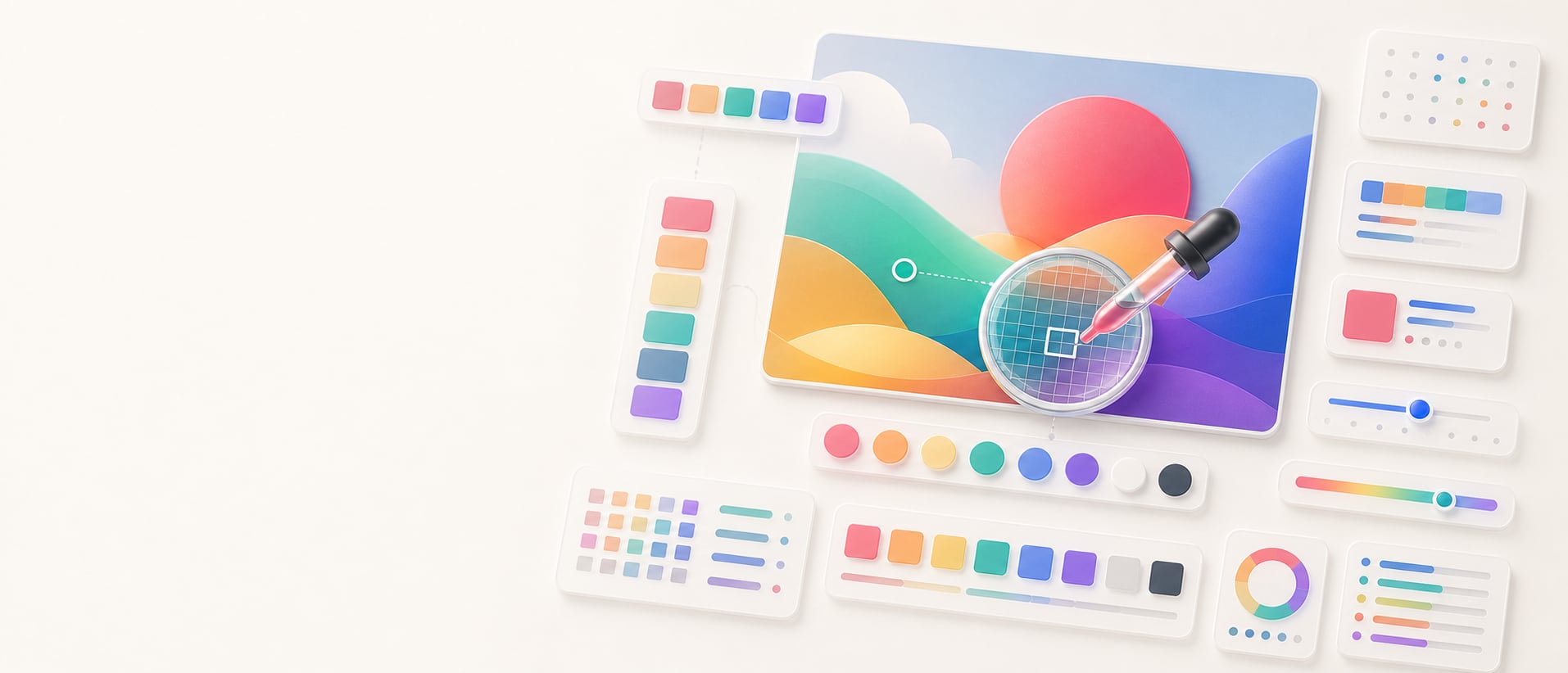
Manual image eyedropper
Sample HEX colors from a local image.
Inspect and pin exact or averaged source pixels from a local image with a precision loupe, readable format values, best-text guidance, and copy-ready handoff.
Free color utility
Image Eyedropper
Inputs update live, exports are copy-ready, and the color math stays deterministic.
Quick start
Starter presets
Start with a realistic setup, then adjust any input and watch the result update.
Valid input example: A local JPG, PNG, WebP, or AVIF image; the built-in demo is ready immediately
If input is invalid: Unsupported or unreadable images produce an announced error, and the local demo remains available so the workflow never dead-ends.
Choose a preset or edit the controls directly.
Local image
Inspect exact pixels before sampling
Instructions
- Use the default image or upload an image file to load it into the browser-side sampler.
- Move over the preview to see the exact source-image coordinate, live HEX value, RGB value, and magnified pixel grid before clicking.
- Choose exact-pixel sampling or a small averaged sample when compression noise makes a single pixel misleading.
- Tab to the image sampler or click or tap to lock a starting pixel. Refine it with the arrow keys or pixel nudge controls, then press Enter, Space, or Pin color to save it.
Choose a JPG, PNG, WebP, or AVIF image. Images are processed locally in your browser. Large photographs use memory-conscious exact source tiles, and pixel coordinates remain source-image coordinates.
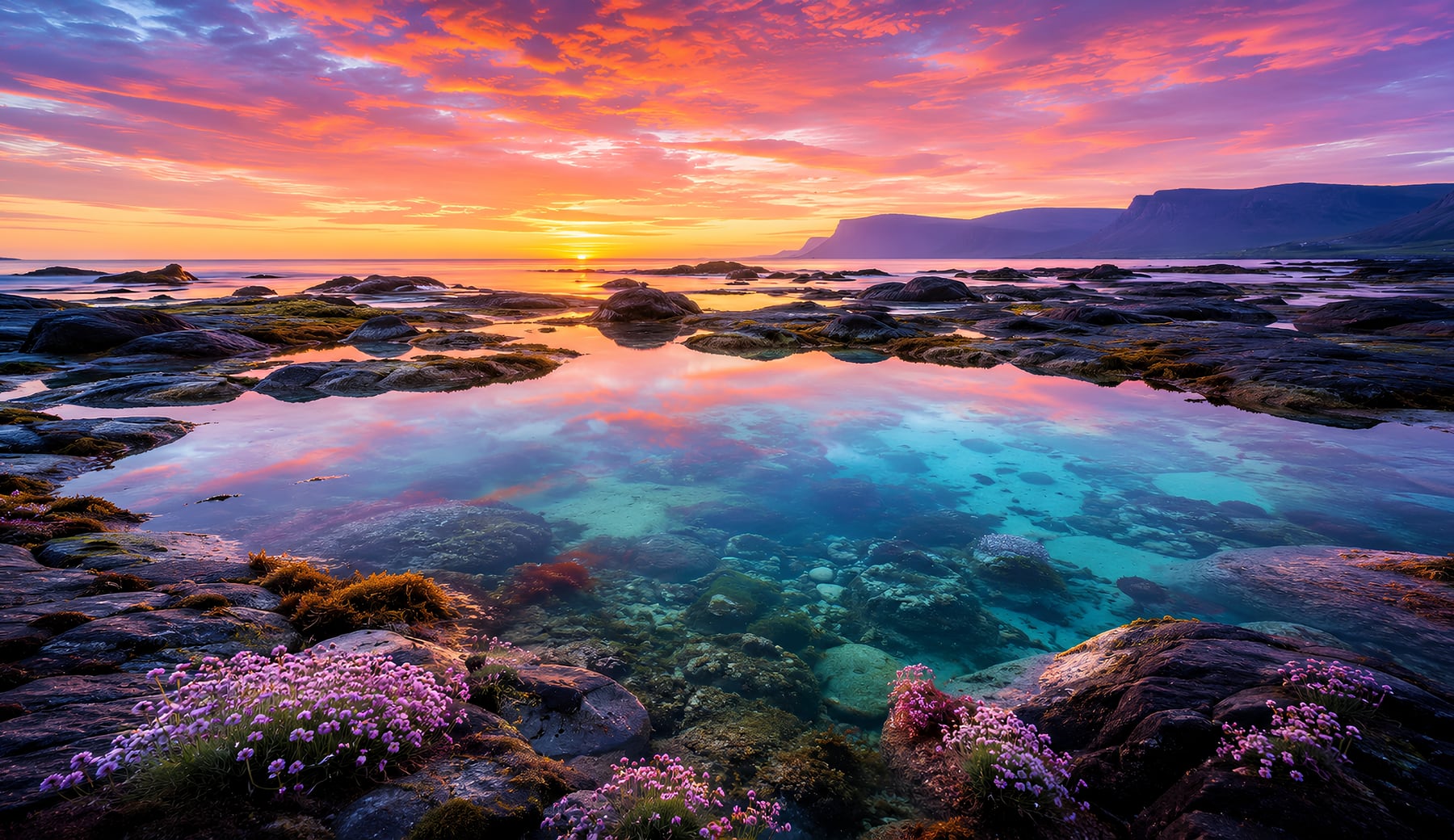
Pause, then move the mouse slowly for one-source-pixel precision. Tab to focus without clicking, or click or tap to lock a starting pixel. Arrow keys and pixel nudge controls move one source pixel; hold Shift with an arrow key to move ten. Move away from a locked selection to save it and continue, or press Enter, Space, or Pin color to save it immediately.
Center square is sampled. Arrow keys nudge 1 source pixel; Shift + arrow nudges 10. Enter pins the selected color.
Methodology and guides
How this tool calculates and connects.
Review the formulas, assumptions, edge cases, validation checks, caveats, and related color guidance behind Image Eyedropper.
Methodology pages
Related guides
How it fits
From sampled pixel to reusable color.
Inspect a precise source pixel locally, refine the sample with the loupe and keyboard controls, and carry the chosen value into design or code.
Sample with precision
Use exact or averaged sampling, source coordinates, magnification, and pixel nudging to confirm the intended point before pinning it.
Add usable context
Review HEX, RGB, HSL, OKLCH, and readable-text guidance so a pixel can become more than an unlabeled swatch.
Free sharing
Image sampling settings and saved color samples can be bookmarked and shared without an account; the source image itself is not included.
Quick overview
Hue Codex Image Eyedropper is a free browser-based tool for sampling precise colors from a local image. It processes the image in the browser, previews the source-image pixel under the cursor with a magnified loupe, lets you pin samples, shows HEX, RGB, HSL, OKLCH, source coordinates, and best readable text, then exports copy-ready handoff data.
- Use the image eyedropper to inspect the exact source-image pixel before pinning a color.
- Images are processed in the browser rather than sent to a server by the tool.
- Each sample includes HEX, RGB, HSL, OKLCH, source-image x/y coordinates, and best readable text guidance.
- Exact-pixel mode reads one source pixel; averaged modes help smooth compression noise.
- The tool keeps up to 16 pinned samples and exports them as summaries, CSS variables, JSON, Markdown, or token-style JSON.
What the Hue Codex image eyedropper does
The Hue Codex image eyedropper lets you choose an image file from your device, inspect the exact source-image pixel under the cursor, and sample colors only when you are confident about the target pixel.
The live readout shows a magnified pixel loupe, source-image coordinates, HEX, RGB, HSL, OKLCH, and best readable text guidance before you click. Pinned samples appear as swatches with copy actions and handoff-ready exports.
An image eyedropper is a color sampling tool that reads a pixel or small pixel neighborhood from an image and returns color values such as HEX, RGB, HSL, and OKLCH for design and web use.
How image color sampling works
When you choose an image, Hue Codex decodes it locally and maps the preview cursor back to the original image coordinates. Images within the working-canvas budget use a browser-side source canvas; larger photographs use small exact source tiles so the tool does not need a second full-resolution RGBA canvas.
Exact-pixel mode reads one source pixel. The 3x3 and 5x5 average modes intentionally average nearby source pixels, which can be useful for noisy photos, compressed screenshots, gradients, and anti-aliased edges.
| Output | What it means | How to use it |
|---|---|---|
| HEX value | The sampled pixel converted to a web-friendly HEX color. | Copy it into CSS, color roles, palette notes, or another Hue Codex color tool. |
| Source coordinates | The x and y position of the sampled pixel in the source image. | Use it as a precise reference for where the color was sampled. |
| RGB, HSL, and OKLCH | Additional color representations calculated from the sampled RGB value. | Use them for developer handoff, color conversion, and design-system notes. |
| Best text | The better black-or-white text color for the sampled color. | Use it as a quick readability hint before deeper contrast review. |
| Pinned samples | The latest sampled colors, capped at 16 pins. | Collect a small set of source colors before copying or refining them. |
Results shown by Hue Codex
The eyedropper displays sampled colors immediately as swatches and stores them in a copy-ready output. Each item can be copied individually, and the full export can be switched between a handoff summary, CSS variables, JSON, Markdown, and token-style JSON.
Sample swatch
A visual preview of the pinned color, shown with its HEX value and source-image coordinates.
Copy button
Copies the individual HEX or RGB color so it can be pasted into CSS, design tools, or palette documentation.
Coordinate note
Records the x/y position in the source image, which helps trace where a color came from.
Clear control
Removes the current sample list when you want to start over with the same image or a different reference.
Best uses for an image eyedropper
Manual image sampling is useful when a specific pixel matters more than an automatically extracted palette. It gives you control over which part of an image becomes a color reference.
- Pick brand colors from a logo or screenshot when the original HEX values are not available.
- Sample UI colors from mockups, product screenshots, or website captures.
- Collect colors from photography, illustrations, packaging, or moodboards.
- Inspect exact pixels along anti-aliased edges before choosing a brand or UI color.
- Copy sampled HEX values into palette generators, contrast checkers, or color-role drafts.
Image sampling caveats
The color you sample depends on the image file, compression, scaling, browser color handling, and the exact source pixel you choose. Screenshots and photos often contain anti-aliased edges, shadows, reflections, and gradients, so nearby pixels can produce different HEX values.
Exact-pixel mode is precise, but that does not mean the sampled pixel is always the right design decision. For final brand or accessibility work, confirm sampled colors against official source files and run contrast checks in the real UI context.
Quick answers
Image Eyedropper FAQ
What is the Hue Codex image eyedropper?
Hue Codex Image Eyedropper is a free browser-based tool that samples colors from a local image with a live cursor readout, magnified pixel loupe, source-image coordinates, and pinned sample exports.
Are uploaded images sent to a server?
No. The tool processes the selected image locally in your browser and samples browser-held canvas pixels, including small source tiles for large images. Hue Codex does not upload local images for this tool, and analytics events do not include raw uploaded images, email addresses, or other personal details.
What color format does the eyedropper return?
The eyedropper returns sampled colors as HEX, RGB, HSL, and OKLCH values, with export modes for CSS variables, JSON, Markdown, token-style JSON, and handoff summaries.
What do the x and y values mean?
The x and y values are source-image coordinates for the sampled pixel, which makes them useful for tracing the exact point sampled from the original image data loaded in the browser.
What is exact pixel versus averaged sampling?
Exact pixel reads the single source pixel under the cursor. Averaged modes calculate a 3x3 or 5x5 neighborhood, which can make noisy photos, gradients, and compressed screenshots easier to sample consistently.
How many colors can I sample?
The tool keeps up to 16 pinned samples, with the newest sample shown first.
Can I copy individual sampled colors?
Yes. Each sampled color includes copy buttons for HEX and RGB values, and the export area lists sampled colors with source coordinates and handoff-ready color data.
Why can nearby pixels produce different HEX colors?
Images often include gradients, shadows, compression artifacts, anti-aliasing, and texture. Moving even one pixel can change the sampled RGB value and resulting HEX color.