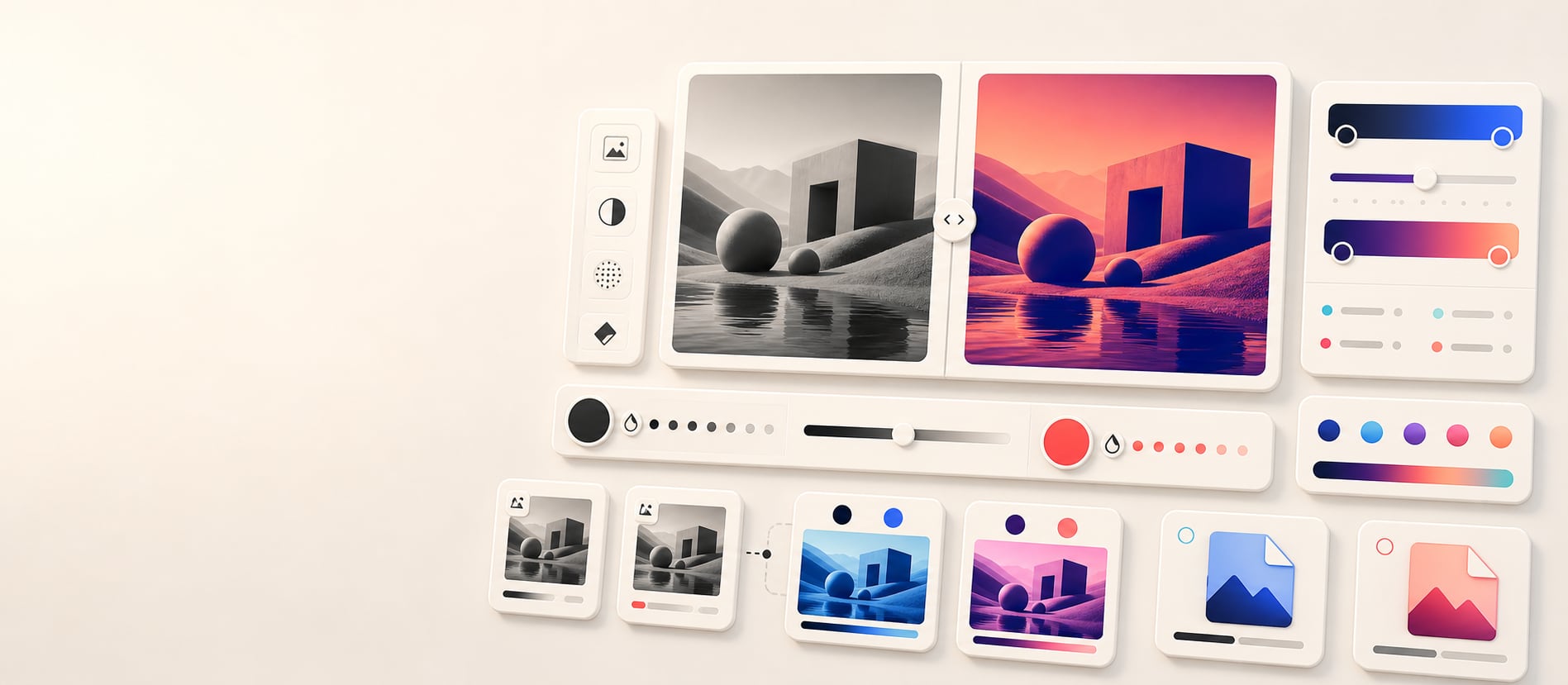
Duotone generator
Design and review a two-color duotone image treatment.
Design a local two-color image treatment with live source and result previews, tone and overlay checks, source-size PNG export, and copy-ready handoff.
Free color utility
Duotone
Inputs update live, exports are copy-ready, and the color math stays deterministic.
Quick start
Starter presets
Start with a realistic setup, then adjust any input and watch the result update.
Valid input example: A local JPG, PNG, WebP, or AVIF plus #10212B shadow and #4169E1 highlight
If input is invalid: Unsupported or unreadable images produce an announced error, and the local demo remains available so the workflow never dead-ends.
Choose a preset or edit the controls directly.
Image treatment
Production duotone generator
Instructions
- Use the default image or upload an image file to preview the treatment locally in the browser.
- Choose shadow and highlight colors, then tune intensity, midtone bias, and contrast for the image.
- Review the source/effect preview, tone strip, production checks, and overlay-text guidance.
- Download a source-size PNG or copy CSS, JSON, Markdown, token-style JSON, or a handoff summary.
Choose a JPG, PNG, WebP, or AVIF image. Images are processed locally. The preview is scaled for speed; PNG export renders at the source image size.
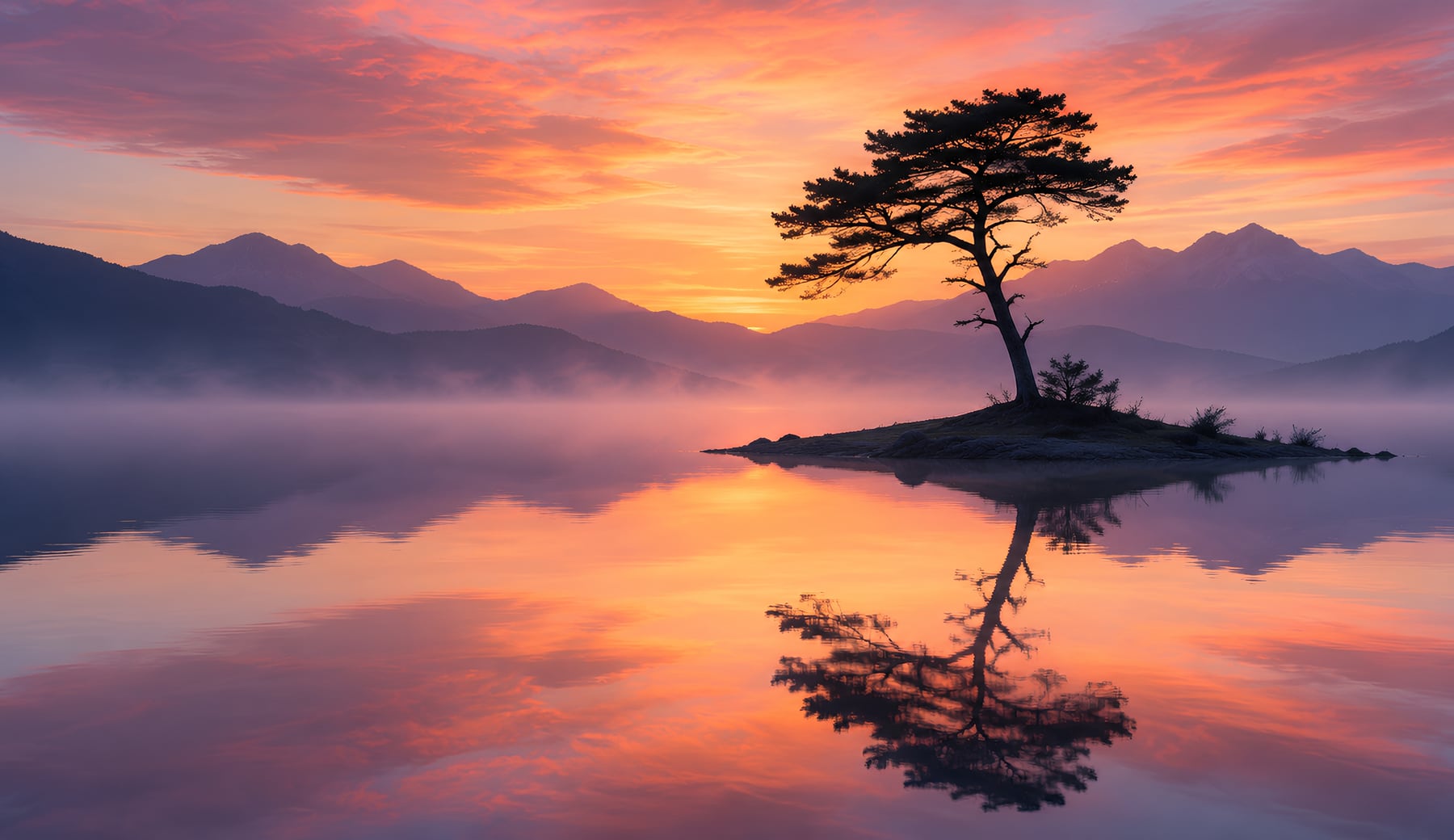
The duotone detail loupe shows the duotone result by default. Hold O to compare the original image, hold S to compare original and duotone side by side, press plus to zoom in, or press minus to zoom out.
Focus the image viewer to use O for the original image, S for split compare, plus to zoom in, or minus to zoom out.
Methodology and guides
How this tool calculates and connects.
Review the formulas, assumptions, edge cases, validation checks, caveats, and related color guidance behind Duotone.
Methodology pages
Related guides
How it fits
From image treatment to production handoff.
Map local image luminance into a controlled two-color treatment, review the result in context, and export both the rendered asset and its settings.
Map tones locally
Blend shadow and highlight colors from source luminance while tuning intensity, midtones, and contrast entirely in the browser.
Review the treatment
Compare source and result previews, color separation, and overlay text candidates before approving the effect for a production context.
Free sharing
Duotone settings can be bookmarked and shared without an account; the source image itself is not included.
Quick overview
Hue Codex Duotone Generator is a free browser-based tool that applies a production-oriented two-color image treatment to a local image or default image source. Shadow and highlight controls accept alpha-capable HEX, RGB, HSL, HWB, Lab/LCH, OKLab/OKLCH, supported color() values, fixed color names, and transparent. It maps each pixel luminance between those colors, including their alpha, lets you tune intensity, midtones, and contrast, previews source and result canvases, checks color separation and overlay text candidates, downloads a PNG at the source image size, and exports CSS, JSON, Markdown, token-style JSON, or handoff notes.
- Use the duotone generator to preview and tune a two-color image treatment directly in the browser.
- The shadow color maps to darker image areas, and the highlight color maps to lighter image areas.
- Images are processed locally by the browser-side canvas workflow.
- Use intensity, midtone bias, and contrast to preserve image detail or create a stronger campaign treatment.
- The downloaded PNG renders from the source image dimensions and reflects the pixel-mapped effect more directly than the CSS approximation.
- Duotone colors should still be checked for brand fit, image detail, responsive crops, and text overlay contrast before production use.
What the Hue Codex duotone generator does
The Hue Codex duotone generator applies a two-color image treatment to a default image source or an uploaded local image. You choose a shadow color and a highlight color, then tune intensity, midtone bias, and contrast while the browser-side canvas remaps the image through those two colors.
The tool is designed for visual exploration and production handoff: compare the source image and duotone result, review tone-ramp and overlay-text guidance, download the rendered PNG, or copy summary, CSS, JSON, Markdown, and token-style output from the export panel.
A duotone generator maps an image through two colors, usually assigning one color to shadows and another color to highlights.
How the duotone effect is applied
Hue Codex reads each canvas pixel, calculates a luminance value from its red, green, and blue channels, then interpolates between the shadow color and highlight color. Darker pixels move toward the shadow color; lighter pixels move toward the highlight color.
Intensity blends the duotone result back toward the original image, midtone bias shifts middle values toward the shadow or highlight, and contrast expands or compresses the tonal mapping. The browser-side effect is deterministic and fast enough for quick previews, while keeping the uploaded image local to the page workflow.
| Role | What it controls | How to choose it |
|---|---|---|
| Shadow | The color assigned to darker areas of the image. | Use a deep brand color, ink color, dark neutral, or moody campaign tone. |
| Highlight | The color assigned to lighter areas of the image. | Use a bright accent, light brand color, warm highlight, or contrasting campaign tone. |
| Luminance mapping | The grayscale brightness value that chooses the mix between shadow and highlight. | Use high-contrast source images when you want more recognizable subject detail. |
| Canvas preview | The browser-rendered source image and duotone result shown inside the tool. | Use this preview and PNG export when exact visual output matters more than CSS approximation. |
| Production checks | Color separation, tonal range, overlay text candidates, and export-fidelity notes. | Use these checks to catch flat treatments, fragile text overlays, or CSS approximation limits before handoff. |
PNG export and CSS approximation
The Download PNG button saves huecodex-duotone.png at the source image dimensions. The on-page preview is scaled for speed, while the PNG export renders the same duotone mapping from the original image size.
The output panel includes handoff summary, CSS approximation, JSON data, Markdown report, and token-style JSON. CSS can approximate a duotone treatment with grayscale, contrast, a two-color overlay, and blend modes, but the exact effect depends on markup, layering, blend mode, image content, and browser rendering.
- Use the PNG export when you need the current treatment as a static image at the source image dimensions.
- Use the CSS notes when you need a starting point for a live browser effect.
- Keep the shadow, highlight, overlay-text candidate, and treatment settings in design-system or campaign documentation.
- Test text overlays and UI layers separately after choosing the duotone colors, especially across responsive crops.
Best uses for a duotone generator
Duotone effects are useful when images need to feel more aligned with a brand, campaign, or interface mood. They can make mixed source photos feel cohesive without manually editing every image in a design tool.
Brand image treatments
Map product, team, event, or editorial images through brand shadow and highlight colors.
Hero and campaign graphics
Create a consistent two-color image mood for landing pages, social graphics, and promotional assets.
Placeholder and prototype imagery
Use duotone previews to test layout direction before commissioning final imagery.
Design handoff
Copy the shadow and highlight colors plus CSS notes into documentation for teammates and production partners.
Duotone effect caveats
Duotone effects can reduce image detail, change skin tones, hide important product information, and create unexpected contrast problems for text overlays. Source image lighting and contrast strongly affect the result.
The CSS approximation is not a guaranteed match for the canvas render. Use the PNG export when you need a source-size pixel render, and test responsive crops, high-resolution assets, image compression, blend-mode behavior, and accessibility overlays before production use.
Quick answers
Duotone FAQ
What is the Hue Codex duotone generator?
Hue Codex Duotone Generator is a free browser-based tool that maps a local image or default image source through a shadow color and highlight color, with intensity, midtone, contrast, preview, checks, PNG export, and copy-ready handoff output.
Are uploaded images sent to a server?
No. The tool processes the selected image locally in the browser canvas workflow. Hue Codex does not upload local images for this tool, and analytics events do not include raw uploaded images, email addresses, or other personal details.
How does the duotone effect work?
Hue Codex calculates each pixel luminance and uses that brightness value to mix between the chosen shadow and highlight colors. Intensity, midtone bias, and contrast adjust how strongly that mapping affects the final canvas render.
What does the shadow color control?
The shadow color is applied to darker areas of the image and usually sets the deepest tone of the duotone effect.
What does the highlight color control?
The highlight color is applied to lighter areas of the image and usually sets the brightest tone of the duotone effect.
Can I download the duotone image?
Yes. The Download PNG button saves the current duotone treatment as a PNG at the source image dimensions.
What export formats does the duotone tool include?
The tool can export a handoff summary, CSS approximation, JSON data, Markdown report, and token-style JSON for the selected shadow, highlight, overlay text candidate, and treatment settings.
Does the CSS approximation exactly match the canvas preview?
Not always. The CSS notes are a starting point for a live effect, while the downloaded PNG captures the browser-rendered canvas result.
Can I use duotone images behind text?
Yes, but check contrast carefully. The tool suggests an endpoint overlay-text candidate, but real text still needs to be tested over the final image crop because duotone effects can create bright or dark regions.