Image palette extractor
From image pixels to a palette you can actually use.
Turn a local image into perceptually distinct color clusters, proportional coverage, source-derived role candidates, an inspectable interface specimen, and copy-ready handoff without uploading the source image.
Free color utility
Image Palette
Inputs update live, exports are copy-ready, and the color math stays deterministic.
Quick start
Starter presets
Start with a realistic setup, then adjust any input and watch the result update.
Valid input example: A local JPG, PNG, WebP, or AVIF image; no upload leaves the browser
If input is invalid: Unsupported or unreadable images produce an announced error, and the local demo remains available so the workflow never dead-ends.
Choose a preset or edit the controls directly.
Local image
Extract a palette with structure, not just swatches
Instructions
- Upload an image file or use Restore demo to reload the starter image.
- Choose the extraction focus, swatch count, sorting, and sample quality for the kind of palette you need.
- Hue Codex refines coarse pixel groups in OKLab, assigns every sampled pixel to a cluster, and preserves source-derived centroid colors without recoloring them.
- Review proportional coverage, perceptual separation, accessible foregrounds, and the live extracted-role specimen.
- Export raw clusters plus semantic aliases as CSS, JSON, Markdown, token-style JSON, SVG, or PNG.
Choose a JPG, PNG, WebP, or AVIF image. Images stay in your browser. Extracted swatches are perceptual cluster centroids, not arbitrary single pixels.
All shown source-role pairings pass
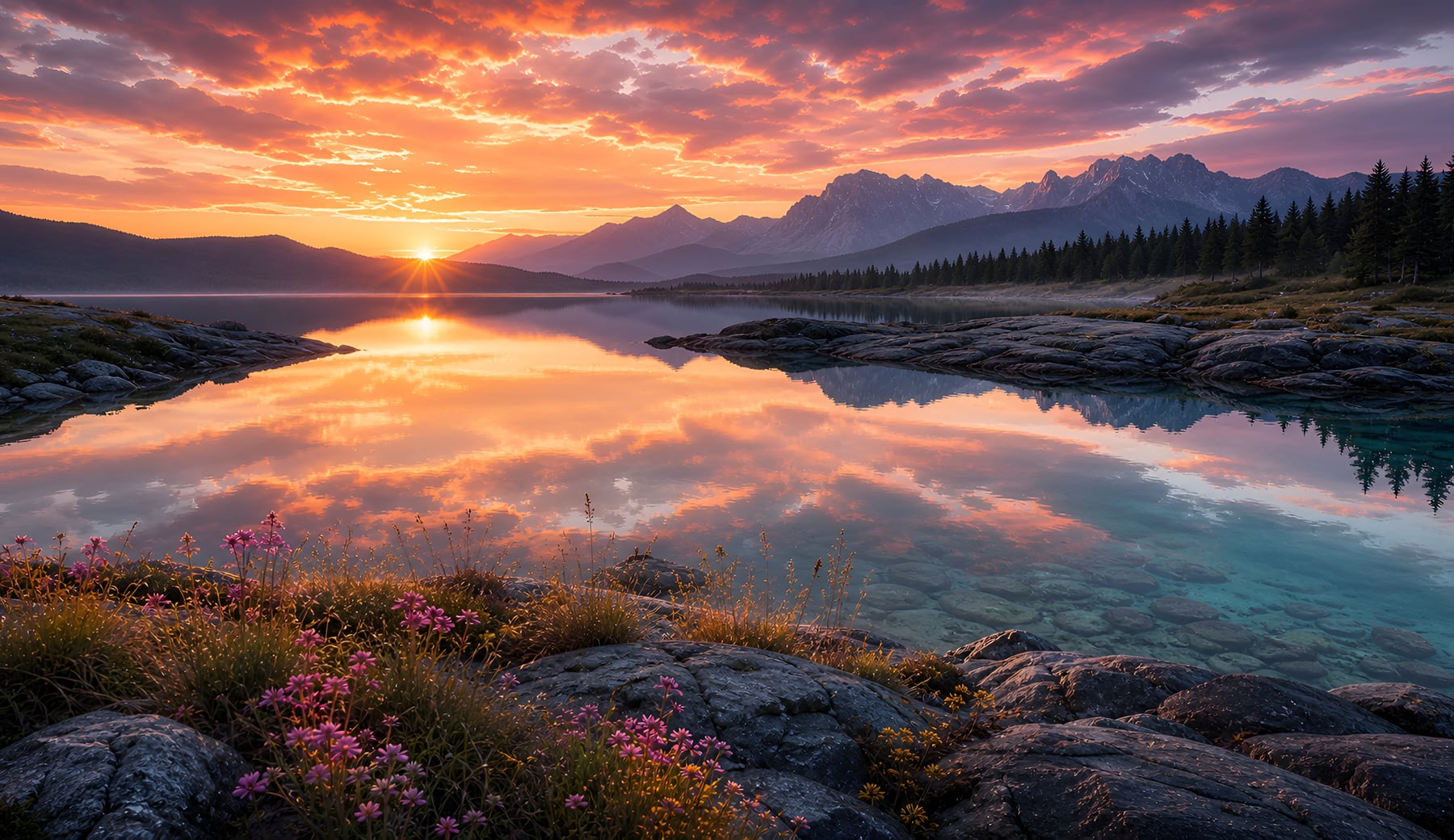
Default image: Prioritizes the image areas with the greatest sampled coverage.
- Body pair: #F3A77B on #121113 is 9.53:1 - AA normal pass.
- Pass — Primary action: #775964 is 3.05:1 on surface; #FFFFFF text is 6.18:1.
- Pass — Secondary action: #AC7576 is 4.99:1 on surface; #000000 text is 5.56:1.
- Pass — Closest colors: #473A40 and #2B272A are 10.8 dE apart.
Role suggestions use unmodified final cluster centroids; Hue Codex does not recolor the extracted palette. Pixels under 50% alpha are skipped; the rest are flattened on #FBFAF5 before perceptual clustering and export.
Role colors are final perceptual cluster centroids. Hue Codex assigns them without recoloring; black or white action text is derived separately.
Coverage keeps the visual mood grounded while extracted roles make the next design decision concrete.
Source-aware colors, ready to test in context.
Turn on role mapping, then hover, focus, or select a specimen element to inspect its assigned swatches, coverage, contrast, target, and source-fidelity note.
- Body text on surface9.53:1 / 4.5:1 target - Pass
- Primary action on surface3.05:1 / 3:1 target - Pass
- Text on primary action6.18:1 / 4.5:1 target - Pass
- Secondary action on surface4.99:1 / 3:1 target - Pass
- Text on secondary action5.56:1 / 4.5:1 target - Pass
Best text #000000 - 10.62:1, AA normal pass, AAA normal pass, AA large pass, UI/non-text pass.
RGB 243 167 123 / HSL 22 83.3% 71.8% OKLCH 79.23% 0.10748 50.7Best text #000000 - 5.56:1, AA normal pass, AAA normal fail, AA large pass, UI/non-text pass.
RGB 172 117 118 / HSL 358.9 24.9% 56.7% OKLCH 61.92% 0.06961 18.06Best text #FFFFFF - 18.83:1, AA normal pass, AAA normal pass, AA large pass, UI/non-text pass.
RGB 18 17 19 / HSL 270 5.6% 7.1% OKLCH 17.97% 0.00434 308.19Best text #FFFFFF - 10.78:1, AA normal pass, AAA normal pass, AA large pass, UI/non-text pass.
RGB 71 58 64 / HSL 332.3 10.1% 25.3% OKLCH 36.44% 0.02063 348.66Best text #FFFFFF - 6.18:1, AA normal pass, AAA normal fail, AA large pass, UI/non-text pass.
RGB 119 89 100 / HSL 338 14.4% 40.8% OKLCH 49.85% 0.04247 354.9Best text #FFFFFF - 14.72:1, AA normal pass, AAA normal pass, AA large pass, UI/non-text pass.
RGB 43 39 42 / HSL 315 4.9% 16.1% OKLCH 27.82% 0.00794 334.35Best text #FFFFFF - 7.41:1, AA normal pass, AAA normal pass, AA large pass, UI/non-text pass.
RGB 76 86 103 / HSL 217.8 15.1% 35.1% OKLCH 45.1% 0.03067 261.03Methodology and guides
How this tool calculates and connects.
Review the formulas, assumptions, edge cases, validation checks, caveats, and related color guidance behind Image Palette.
Methodology pages
Related guides
How it fits
From local image to role-aware palette.
Extract representative colors from a local image, refine them with coverage and contrast context, and turn the result into a practical starting palette.
Control the extraction
Choose focus, quality, sorting, and swatch count so the generated colors reflect the part of the image relevant to the project.
Move beyond frequency
Use coverage, contrast guidance, and role hints to decide which extracted colors belong in a usable palette.
Free sharing
Extraction settings and generated palette colors can be bookmarked, shared, or downloaded as customized SVG and PNG cards without an account; the source image itself is not included.
Quick overview
Hue Codex Image Palette Extractor is a free browser-based tool that converts a local image into a deterministic perceptual palette. It starts with efficient pixel buckets, refines them as weighted OKLab centroids, assigns every sampled pixel to a cluster, and then shows proportional coverage, separation, pair-specific foreground checks, source-derived role candidates, an inspectable UI specimen, copy-ready development handoff, and customizable SVG or PNG palette cards.
- Use the image palette extractor to turn a photo, screenshot, logo, or moodboard into a small HEX palette.
- Images are processed locally in the browser by the tool.
- Choose 5, 7, 9, or 12 swatches depending on how much detail you need.
- Use focus, sorting, quality, and neutral-merging controls to shape the extraction for moodboards, vivid accents, or UI roles.
- Every sampled pixel contributes to a perceptual cluster, so coverage represents the extracted palette instead of only the initial coarse bucket.
- Role suggestions never recolor the source palette: they assign four distinct final cluster centroids, report all five specimen pairings, and clearly mark an incomplete source-only set.
- Role mapping reveals the assigned swatch, coverage, foreground and background values, raw-threshold result, and whether a color was modified.
- Use extracted palettes as evidence-backed starting points, then refine brand meaning and test final components before production.
- Customize shareable palette images by layout, theme, value format, scale, branding, edit link, QR code, labels, tokens, and accessibility summary without embedding the local source image.
What the Hue Codex image palette extractor does
The Hue Codex image palette extractor turns a local image into a compact set of representative swatches. Upload a photo, screenshot, logo, illustration, or moodboard, choose the number of swatches, focus mode, sort order, and quality, then preview the extracted palette directly in the browser.
The tool also includes a default image so you can test the extractor before choosing a file. The live result shows proportional coverage, perceptual separation, source-derived role candidates, foreground contrast, and an inspectable interface specimen, while the export area provides raw clusters, semantic aliases, and customizable SVG or PNG palette cards.
An image palette extractor analyzes image pixels and returns a small set of representative colors, usually called dominant colors or swatches.
How dominant color extraction works
Hue Codex draws the selected image into a browser canvas, samples pixels, and builds efficient coarse color buckets. It then refines deterministic weighted centroids in OKLab, a perceptual color space, and reassigns every sampled bucket to its nearest final cluster.
The final palette can prioritize dominant colors, balanced variety, vivid accents, or UI-role candidates. Focus changes the deterministic starting centroids; weighted refinement keeps final colors grounded in the image. Sorting changes presentation only, while exhaustive role selection assigns distinct Surface, Text, Primary, and Secondary candidates without modifying extracted values.
| Step | What happens | Why it matters |
|---|---|---|
| Load image | The selected image is drawn into a preview canvas and a browser-side sample canvas. | You can see the source image while the tool prepares pixels for palette extraction. |
| Sample pixels | The extractor samples through the image data according to the selected quality mode. | Quick mode is faster, while detailed mode reads denser samples for more nuanced palettes. |
| Group nearby colors | RGB values are rounded into efficient coarse buckets, counted, and optionally merged when they are similar neutrals. | This reduces millions of pixels to a tractable deterministic candidate set before perceptual refinement. |
| Refine in OKLab | Weighted centroids are repeatedly updated in OKLab and every candidate bucket is assigned to its nearest cluster. | The result preserves image coverage while separating colors according to perceptual distance rather than raw RGB steps. |
| Review and export | The selected swatches show proportional coverage, average cluster fit, best text, separation, source-derived role suggestions, an exact five-pair pass count, and customizable palette-card controls. | The palette is ready for a live component check, CSS semantic aliases, design notes, JSON handoff, token-style drafts, branded SVG or PNG downloads, or deeper palette tools. |
Choosing 5, 7, 9, or 12 swatches
The swatch count controls how broad or detailed the extracted palette feels. Fewer colors give a cleaner summary; more colors preserve secondary tones, shadows, highlights, and accents.
- Use 5 swatches for a simple moodboard palette, hero section palette, or quick brand inspiration.
- Use 7 swatches for a balanced palette with room for main colors, accents, and neutrals.
- Use 9 swatches when the image has several important hues, shadows, highlights, or product colors.
- Use 12 swatches when you want more raw material before narrowing the palette into roles.
- If a larger palette preserves more subtle tones than you need, request fewer swatches or enable neutral merging, then verify the role shortlist in its real component context.
Best uses for an image palette extractor
Image palette extraction is useful when the visual direction already exists in a photo, illustration, screenshot, logo, or reference board and you need a structured set of colors to start from.
Moodboards and creative direction
Extract a small palette from inspiration images so a visual direction can become concrete HEX swatches.
Brand exploration
Pull dominant colors from product photos, packaging, or logo references before refining them into official palette values.
UI palette drafting
Use extracted colors as a starting point for interface accents, surfaces, illustration colors, or chart palettes.
Content-aware color matching
Build page, card, or campaign colors that harmonize with a specific image or screenshot.
Image palette extraction caveats
This is a deterministic browser-side dominant color extractor, not a full manual art direction pass. Compression, lighting, shadows, gradients, transparency, image scaling, and anti-aliasing can all affect which colors appear dominant.
Treat extracted palettes as starting points. Perceptual cluster distance is a compression and diversity signal, not a universal quality grade. Role suggestions use unmodified final cluster centroids and name only the five shown pairs; they do not establish brand meaning, status semantics, focus visibility, or accessibility for untested component states. A centroid is source-derived but may not equal one literal image pixel.
Large local images are accepted without a 20-megapixel palette-extraction cutoff. After browser decoding, the tool immediately creates a bounded local working copy at the highest useful extraction resolution while keeping the original pixel dimensions visible. This reduces retained memory without uploading the source image.
Quick answers
Image Palette FAQ
What is the Hue Codex image palette extractor?
Hue Codex Image Palette Extractor is a free browser-based tool that extracts a practical palette from a local image and returns swatches with coverage, contrast guidance, role hints, and copy-ready handoff formats.
Are uploaded images sent to a server?
No. The tool processes the selected image in your browser using canvas pixels. Hue Codex does not upload local images for this tool, and analytics events do not include raw uploaded images, email addresses, or other personal details.
How many colors can the extractor return?
You can request up to 5, 7, 9, or 12 extracted swatches. An image with fewer distinct sampled colors can return fewer unique swatches rather than inventing colors that were not present.
How does the tool find dominant colors?
It samples image pixels, builds coarse RGB buckets for speed, skips mostly transparent pixels, and then deterministically refines weighted cluster centroids in OKLab before returning HEX swatches.
What color format does the palette use?
The extracted palette is shown with HEX swatches and can be exported as a summary, CSS variables, JSON, markdown, token-style JSON, or a plain HEX list.
Why are the extracted colors different from exact pixels I click?
The palette extractor summarizes grouped colors across the image. For exact pixel colors, use the image eyedropper instead.
Can I use the extracted palette directly in a design system?
Use the source-derived role shortlist as a tested starting point, not a final design system. The tool verifies exactly five shown surface, text, and action pairs. If no source-only assignment passes them all, the colors stay unchanged and the specimen offers UI-focused extraction, more swatches, or a handoff to Palette Generator for deliberate fitting.
Does the page include a default image?
Yes. The default image control fills the preview with a sample image so you can test focus modes, sorting, quality, and swatch counts before uploading your own image.
Can I customize the downloaded palette image?
Yes. SVG and PNG exports support standard, social, square, compact-strip, and design-system handoff layouts; light, dark, or transparent themes; HEX or OKLCH values; 1x to 3x scale; optional Hue Codex branding, exact edit links, QR codes, role labels, token names, and pair-specific accessibility notes. The local source image is not embedded in the export.
Can I extract a palette from an image larger than 20 megapixels?
Yes. Image Palette Extractor keeps the original dimensions for context, then immediately reduces the decoded image to a bounded local working copy sized for the selected extraction modes. Palette analysis remains in your browser, and the source image is not uploaded.